07 Nov 2026 · linux, terminal, editor · 4 min
Vim for people who just need to edit a file on a server
Vim is on almost every Linux server. Learning five keys covers most day to day edits: open, change a line, save and quit. This guide is the minimum to keep you from getting stuck in the editor.
The minimum that works
Open the file with vim app.conf. The editor starts in normal mode, where keys are commands, not text. To type, press i and enter insert mode. Type. To leave insert mode, press Esc. To save and quit, type :wq and Enter. To quit without saving, :q!.
The confusion for first time vim users is this: letters do not appear until you enter insert mode. That explains half of the “how do I exit vim” questions on Stack Overflow.
#!/usr/bin/env bash
set -euo pipefail

# Non interactive demo, reproducible on any machine with vim.
# If vim is missing, print instructions and exit without error.
if ! command -v vim >/dev/null 2>&1; then
    echo "vim not found."
    echo "Debian/Ubuntu: sudo apt install vim"
    echo "RHEL/Fedora:   sudo dnf install vim"
    exit 0
fi

tmp="$(mktemp -d)"
trap 'rm -rf "$tmp"' EXIT

printf 'host = localhost\nport = 8080\ndebug = false\n' > "$tmp/app.conf"

echo "=== before ==="
cat "$tmp/app.conf"

# replace 8080 with 9090 and save
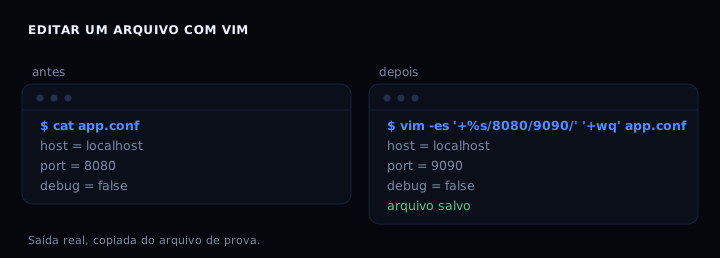
vim -es '+%s/^port = 8080/port = 9090/' '+wq' "$tmp/app.conf"

echo "=== after ==="
cat "$tmp/app.conf"
Insert mode and neighbors
i inserts before the cursor. a inserts after. I goes to the start of the line. A goes to the end. o opens a line below. O opens a line above. In normal mode, x deletes one character, dd deletes the whole line, yy copies the line, p pastes below. The finishing touch: . repeats the last command. These keys avoid entering insert mode for small edits.
Search and replace
In normal mode, /text searches forward. n repeats the search, N goes back. ?text searches backward. To replace everything at once: :%s/old/new/g. The g at the end changes every occurrence on the line, not just the first. To confirm one by one, use :%s/old/new/gc and answer y or n.
The vim -es form runs vim as a filter, with no interface. That is what the block above uses: it replaces and saves, printing nothing. Useful in scripts and on servers without an interactive terminal.
Save, quit, and give up
| Command | What it does |
|---|---|
:w |
save, keep editing |
:q |
quit (only if nothing changed) |
:wq |
save and quit |
:q! |
quit without saving, discard everything |
ZZ |
save and quit (shortcut in normal mode) |
ZQ |
quit without saving |
:e! |
reload from disk, discard edits |
The most common mistake is typing :q while still in insert mode. The text :q ends up in the file. Press Esc first. If you saved by accident, :e! restores the version from disk.
If it goes wrong
- Stuck in a help screen: you pressed F1 or typed
:help. Leave with:q. - Stuck in visual mode: you pressed
vby accident. Press Esc. - Read only file:
vim -Ror a file without write permission. Leave with:q!and, if needed, open withsudoedit fileinstead ofsudo vim. sudoedit preserves the file owner. - Pasted text with wrong indentation: in insert mode, use
:set pastebefore pasting and:set nopasteafter. - Undo:
uin normal mode. Redo:Ctrl-r.
When to use vim and when to use nano
For a quick edit on a server, nano is more direct: the keys show on screen. Vim pays off when the edit is repetitive or when you are already in the terminal and do not want to open another program. On minimal machines, vim is often installed where nano is not. Check with command -v vim and command -v nano.
FAQ
How do I exit vim?
Press Esc and type :q! Enter. To save, :wq.
How do I edit a specific line?
vim +23 file opens on line 23. Or inside vim, 23G.
How do I undo a change?
u in normal mode undoes. Ctrl-r redoes.
Vim or Neovim? Neovim is a fork with Lua configuration and better LSP integration. For editing a file on a server, the basic commands are the same. If the server only has vim, this guide is enough.
How do I edit a remote file without copying it?
vim scp://user@host//path/file opens it over SSH. Needs ssh configured.
Sources
Official documentation at vim.org and online reference at vimhelp.org. See also a terminal that looks clean and works and permissions, chmod, chown, sudo.